Short answer: before calling for IT help, do three things: restart properly, check whether it’s just you, and write down the exact error. Then work through the symptom below. If a step doesn’t fix it, or anything on the “stop and call” list applies, stop there and call. These checks are safe, they fix a surprising number of problems, and the ones they don’t fix get diagnosed much faster.
This checklist is written for office staff and owners, not IT people. Every step is low-risk. Nothing here involves opening hardware, changing security settings or deleting anything.
Three Rules Before Anything Else
- Restart properly. Use Start → Restart, not Shut down and not closing the lid. Windows’ fast start-up means “Shut down” often doesn’t fully reset anything. Many slow or glitchy computers have been running for weeks.
- Find out if it’s just you. Ask a colleague. If everyone has the problem, it’s the network, the internet or a cloud service, and restarting your own computer won’t help. If it’s just you, it’s your computer or your account.
- Write down the error. Take a photo of the screen. The exact wording of an error message is the single most useful thing you can give a technician.
Start With the Symptom
Pick what’s wrong. Each one opens a few safe checks and tells you when to stop.
01Email or Outlook isn’t working
Try this first
- Check whether email works in a web browser at outlook.office.com. If it does, the problem is Outlook on this computer, not your mailbox.
- Close Outlook completely and reopen it. If it keeps asking for a password, sign in once in the browser first.
- Ask a colleague whether theirs is working. If nobody’s is, it’s the service or the network.
Still not syncing, or messages bouncing? Call 604-359-5284 or see how we fix it.
02The Wi-Fi or internet keeps dropping
Try this first
- Check whether a wired computer or a phone on mobile data also loses the connection. That tells you if it’s the Wi-Fi or the internet line.
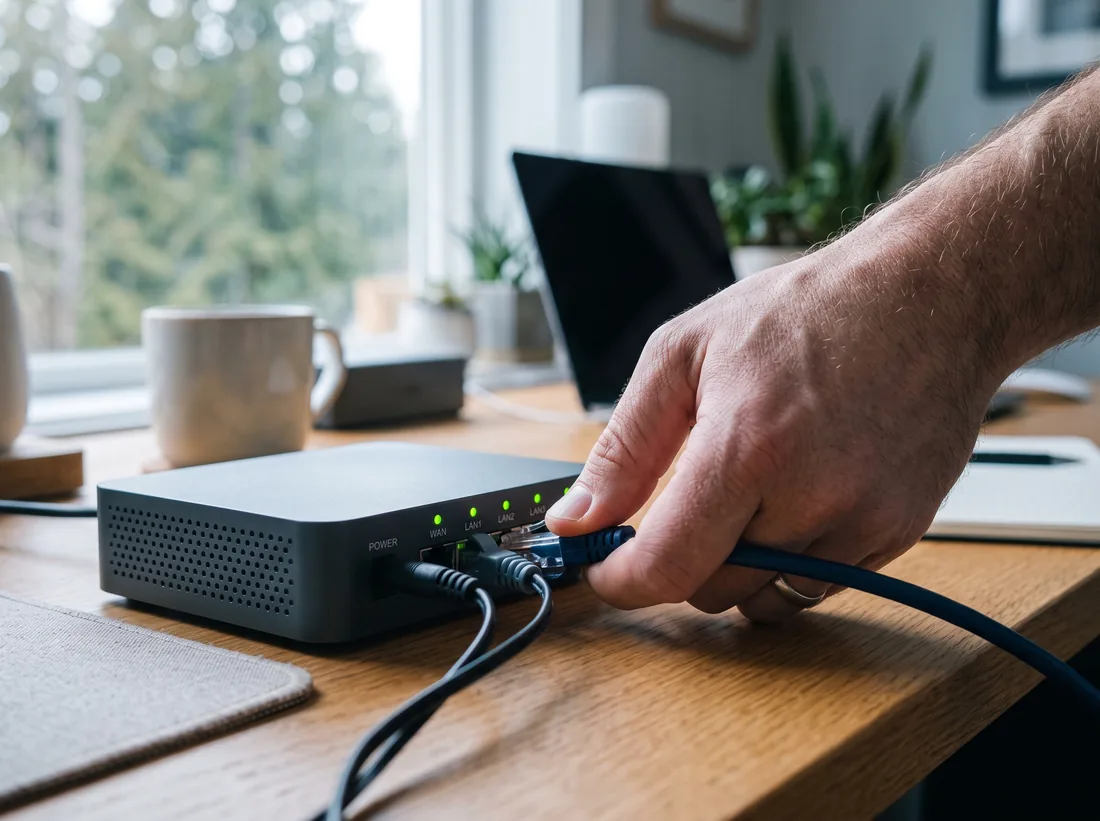
- Restart the modem first, wait two minutes, then the router or firewall. Only restart what you know how to.
- Note the time it drops and where you are in the office. Patterns help us find the cause.
Dropping every day, or only in some rooms? Call 604-359-5284 or see how we fix it.
03Nobody can print
Try this first
- Look at the printer’s screen for paper jams, low toner or an error code, and write the code down.
- Turn the printer off and on, then try printing a test page from its own menu.
- If the test page works but computers can’t print, the problem is the driver or the network address, not the printer.
Still nothing, or only one person can print? Call 604-359-5284 or see how we fix it.
04A computer is very slow
Try this first
- Restart it properly (Start → Restart, not just closing the lid). Many slow computers have been on for weeks.
- Check free disk space. Under 10% free slows everything down.
- Let pending Windows updates finish, then restart again.
Still slow, making noises or freezing? Call 604-359-5284 or see how we fix it.
05Someone can’t sign in
Try this first
- Check Caps Lock and the keyboard language, then try the password in a web browser.
- If the account says it’s locked, wait 15 minutes before trying again; repeated attempts extend the lock.
- If a new phone was set up, the multi-factor app may need re-registering by an administrator.
Still locked out, or a sign-in you don’t recognise? Call 604-359-5284 or see how we fix it.
Outlook and Email
Most Outlook problems are Outlook, not your mailbox. Signing in to outlook.office.com in a web browser tells you which. If your mail is all there in the browser, the mailbox is fine and the problem is on the computer: usually a stale sign-in, an Outlook profile that needs rebuilding, or an update that didn’t finish.
- Constant password prompts: sign in once in the browser, then close and reopen Outlook. If it keeps asking, the stored sign-in needs clearing, which is a quick remote fix.
- Emails stuck in the Outbox: check for a very large attachment. Over about 20 MB, many mail systems refuse it. Send a link instead.
- Clients say your mail goes to junk: that’s your domain’s email records, not something you can fix at your desk. See Microsoft 365 & email setup.
Wi-Fi and Internet
First, work out whether it’s the Wi-Fi or the internet. If a computer plugged in with a cable also has no internet, the line or the firewall is the problem. If wired computers are fine and only Wi-Fi drops, it’s the wireless.
- Restart in order: the internet modem first, wait two minutes, then the router or firewall. Only restart equipment you know how to, and never press reset buttons, which can wipe the configuration.
- Note where and when: Wi-Fi that drops in the same rooms or at the same times points to coverage or interference. That pattern is what we need.
- Check the provider: your internet provider’s outage page or app will tell you if there’s a wider problem.
Printers and Scanners
- Read the printer’s own screen first. Jams, empty trays and toner warnings stop everything, and the error code points straight to the fault.
- Print a test page from the printer’s menu. If that works, the printer is fine and the problem is between it and the computers: usually a driver or a changed network address.
- Clear the queue: one stuck job can block everyone’s. Cancel your own jobs and try again.
- Scan-to-email stopped? It often breaks after an email security change. That needs an administrator.
Slow Computers
- Restart properly, then let any pending updates finish and restart again.
- Check free disk space (File Explorer → This PC). Under about 10% free slows everything.
- Close browser tabs you don’t need. Dozens of open tabs can use more memory than the computer has.
- If it’s still slow, is making clicking or grinding noises, or freezes, stop using it for anything important and call. A failing drive gets worse with use.
Can’t Sign In
- Check Caps Lock and the keyboard language (an accidental switch changes which characters you’re typing).
- If the account is locked, wait 15 minutes before trying again. More attempts can extend the lock.
- New phone? Your multi-factor authentication app may need re-registering by an administrator.
- Received a sign-in approval request you didn’t trigger? Deny it, and tell your IT contact straight away. Someone may have your password.
When to Stop and Call
Stop troubleshooting and call 604-359-5284 if any of these apply:
- Files with strange names or extensions that won’t open, or a message demanding payment. Disconnect the computer from the network and don’t pay anything.
- Clicking, grinding or burning smells from a computer or server. Turn it off.
- Sign-ins you don’t recognise or approval prompts you didn’t trigger.
- Data that’s gone missing from a shared drive or OneDrive. Don’t keep working in that folder; recovery is easier the less it changes.
- The whole office is down and a modem restart hasn’t brought it back.
What to Tell Us When You Call
A good description can halve the time a fix takes, and the bill with it. Have these ready:
- What’s wrong, in your own words, and the exact error message (a photo is perfect).
- When it started, and whether anything changed just before: an update, a new device, a password change.
- Who’s affected: just you, a few people, or everyone.
- What you’ve already tried from this checklist.
Prefer to write it down? Send it to a technician and we’ll pick it up the same business day.